
Sub-Accounts
If the selected pricing plan allows it, the user can have sub-accounts. This is convenient for companies when it is necessary to manage employee accounts. In this case, the main account creates and deletes its sub-accounts within the framework of the selected pricing plan. All sub-accounts will operate under the terms of this pricing plan. Payment for the use of sub-accounts is also made by the main account.
Only the Non-commercial pricing plan does not allow sub-accounts.
Creating a New Sub-Account
If the pricing plan allows, you will see buttons for adding sub-accounts on the profile page:
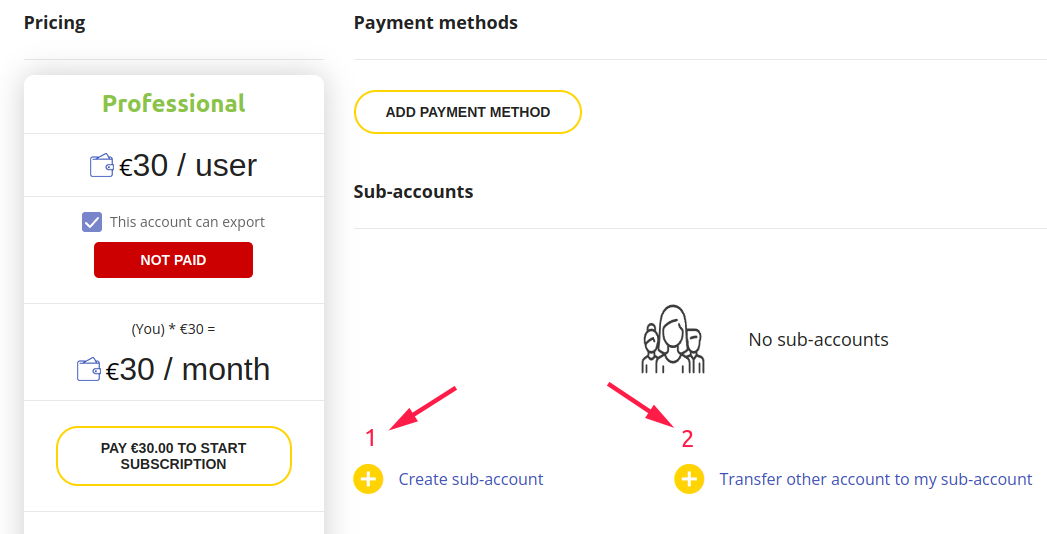
- Button (1) allows you to create a new sub-account if the user being added has not yet registered on the site.
- Button (2) allows you to send a request to transfer an existing account on the site to make it your sub-account. Employees of the company often register on the site first to test the editor, so this option allows making their individual accounts part of the corporate account (sub-accounts).
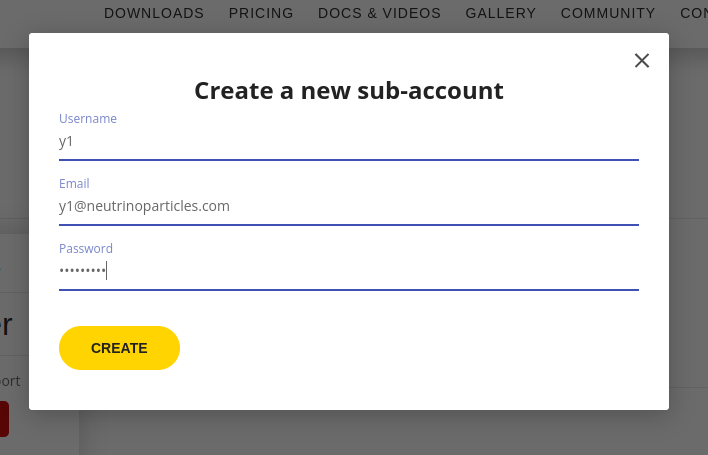
When adding a new sub-account (1), you need to fill out a form with the user's details and click "Create":
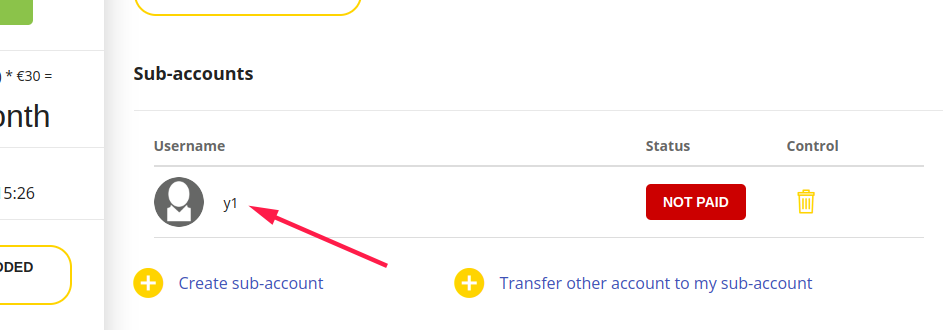
After adding, you will see the new sub-account in the sub-accounts list:
Transferring an Existing Account to Sub-Accounts
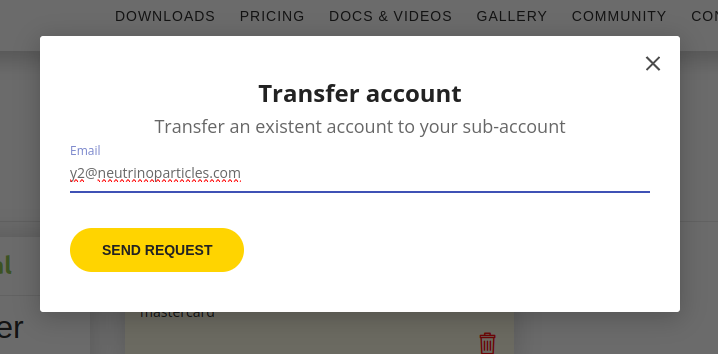
If company employees already have registered accounts on the site, they can be made sub-accounts by sending a transfer request:
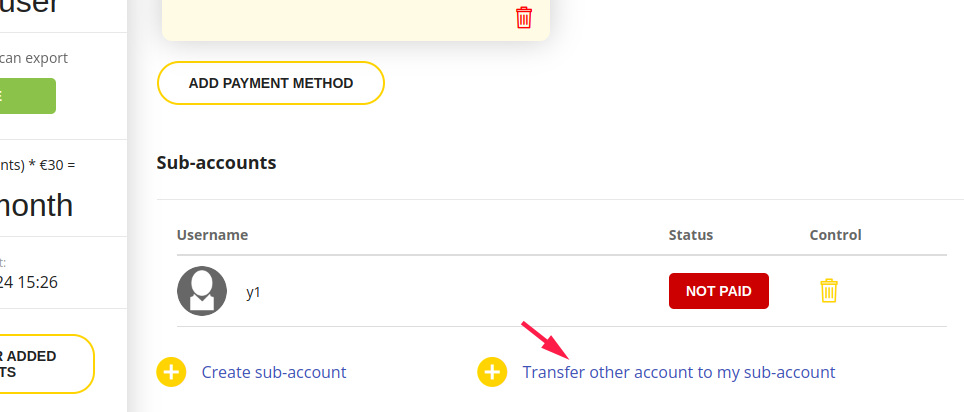
To do this, you need to specify the email of the account you want to transfer and send the request:
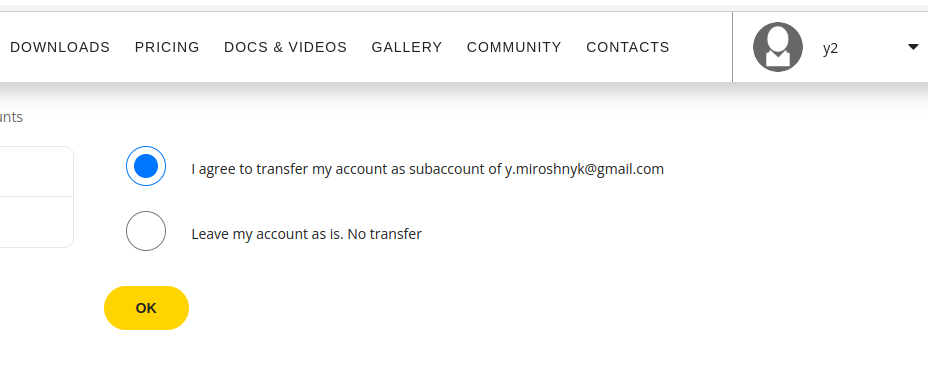
After this, the user you wish to transfer must go to their profile page on the site and accept the transfer request:
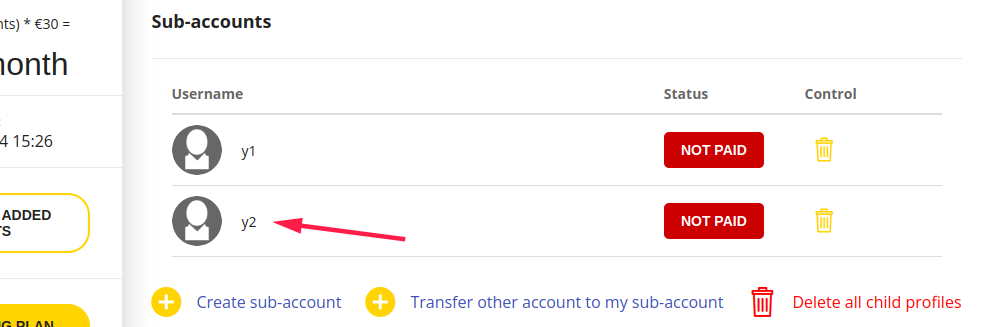
Then, after refreshing the profile page, you will see the new user in the sub-accounts list:
Payment for Added Sub-Accounts
If you have a paid non-contract pricing plan, after adding a new sub-account, its Status (1) will be shown as NOT PAID:
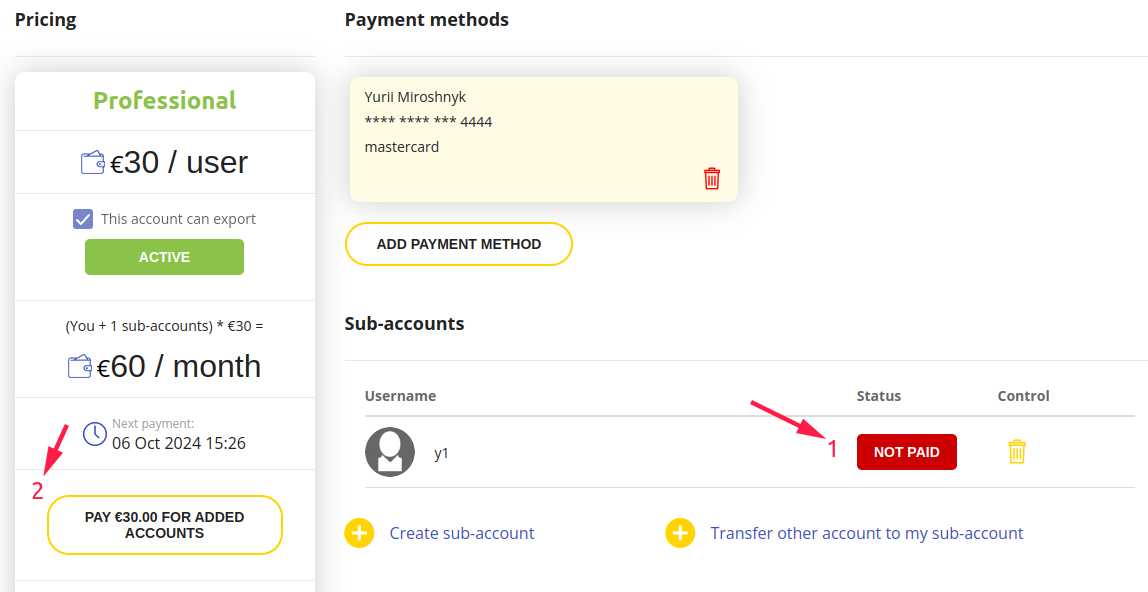
This means it is inactive and cannot export effects until the next payment is made.
Payment can be made using the Pay button (2). If you add multiple sub-accounts, payment can be made after all of them have been added.
If your subscription is already active, payment for new users will cover the remainder of the current subscription month.
If your subscription is active and you do not pay for the added users via the Pay button (2), they will be activated with the next subscription payment, which will include all the available sub-accounts.
Deleting Sub-Accounts
To delete a sub-account, click the delete button:
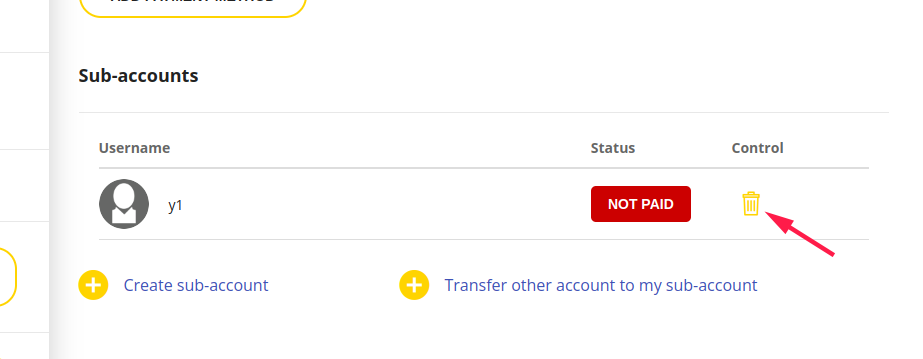
In the case of a paid non-contract pricing plan like Professional, no refunds will be given for the unused portion of the current subscription month.